Billing
Subscriber invoices: invoice types, the user invoices list, issuing invoices, the invoice designer, and postpaid billing.
Billing Overview
User invoices are documents for your subscribers. They don't move money between balances. Manager balances, deposits and commissions are in the Managers chapter, and manager invoices are in Reports → Managers Invoices.
Where invoices come from
| How it is created | Type shown | Paid? |
|---|---|---|
| Billing → Issue Invoice (manual) | custom | Unpaid |
| Activation with Manager Balance and Issue an invoice for the user ticked | acp_activation | Paid if Money Collected is ON, otherwise unpaid |
| Activation or extension paid from the user's balance, or by the subscriber in the user portal | activate | Paid |
| Automatic invoice for Postpaid profiles | purchase/postpaid | Unpaid |
| Withdrawal from a user's balance | transfer/withdrawal | Paid |
Pages in this chapter
- User Invoices: list, pay, un-pay and download invoices.
- Issuing an Invoice: create an invoice manually.
- Invoice Designer: change the invoice PDF layout and logo.
- Postpaid Billing and Settings: automatic invoices for postpaid users.
Invoice number
Invoice numbers look like 2026-5-1234: year, ID of the manager who created the invoice (0 = created automatically), and a running number.
User Invoices
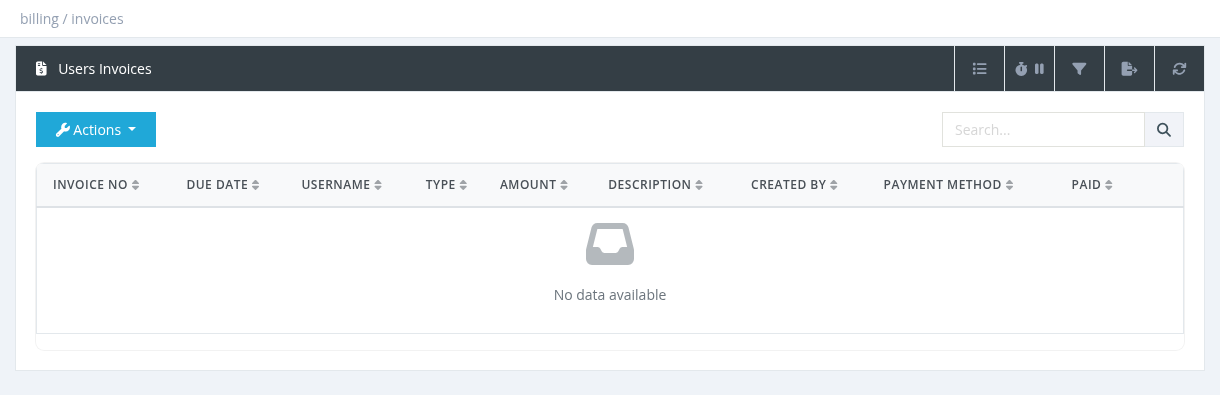
Billing → User Invoices lists the invoices of the subscribers you manage (your users and your sub-managers' users).
Columns
Invoice No (click to open), Due Date, Username, Type, Amount, Description, Created By, Payment Method, Paid (check mark), and Date (hidden by default).
- The Search box finds an invoice by its number.
- The Advanced Filter filters by Invoice Status (All / Paid / Unpaid) and Username.
- Export saves up to 1,000 invoices to Excel.
Actions
| Action | What it does |
|---|---|
| Pay Invoice | Marks the invoice as paid (for example after the subscriber paid you in cash). It only changes the invoice status; balances and debts are not changed. |
| Un-Pay Invoice | Marks a paid invoice as unpaid and adds the amount as a debt on the user (shown in the Debts column of the Users List). Use Pay Debt on the user when the money is received. |
| Download | Downloads the invoice as PDF. |
| Invoice Designer | Opens the Invoice Designer (system administrators). |
- Only the manager who created an invoice, or a system administrator, can pay, un-pay or edit it. Automatic postpaid invoices can be handled by system administrators.
- Invoices can't be deleted. To correct a manual invoice, open it and edit the lines.
A user's invoices are also shown on the user details page, in the Invoices tab.
Required permission: Billing and Users - Show Users Invoices
Issuing an Invoice
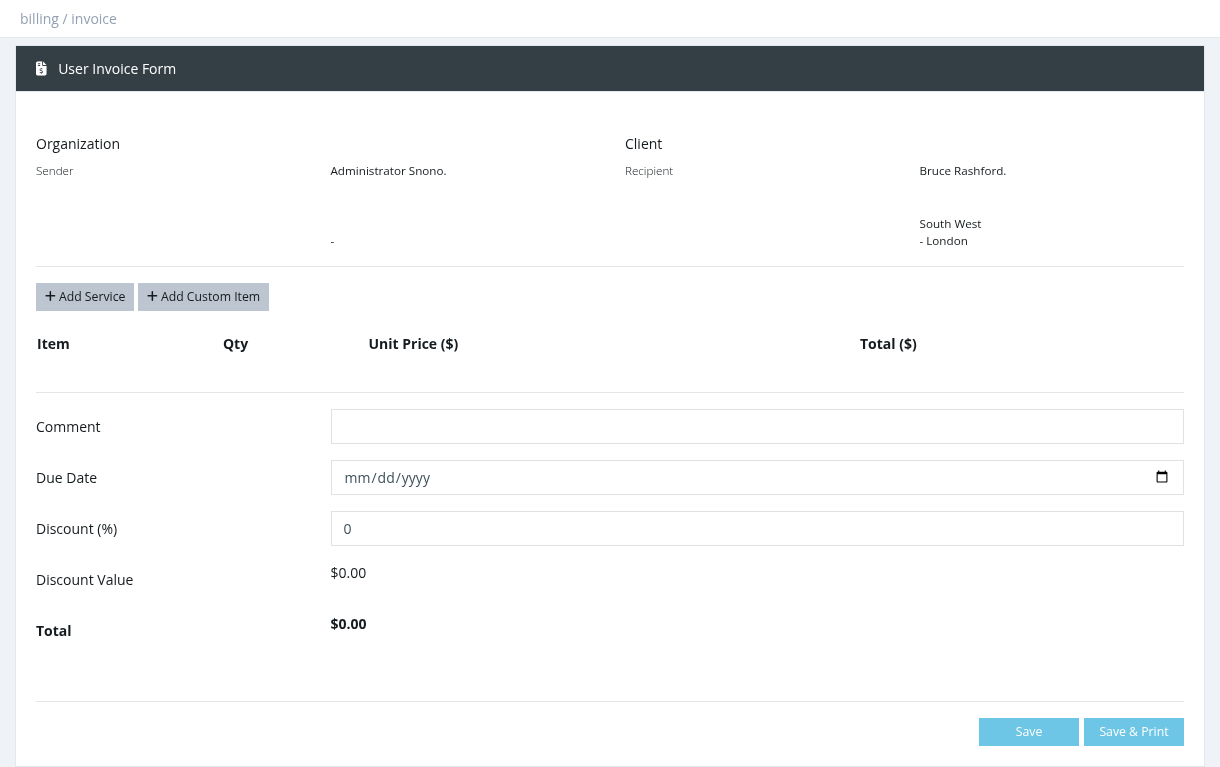
Use Billing → Issue Invoice to create an invoice for a subscriber, for example for installation, equipment or a service. You can also open it from the user's Overview with Issue Invoice; the user is then already selected.
How to issue an invoice
- In select client, type at least 2 characters of the username or name and select the subscriber. The sender (you) and the recipient (the subscriber) are shown at the top.
- Add lines:
- Add Service: choose a profile. The price is filled in from the subscriber price list (without VAT).
- Add Custom Item: type any item name, quantity and unit price, for example "Router TP-Link".
- Optionally set the Due Date (default: today) and a Discount (%). The Discount Value and Total are calculated.
- Click Save, or Save & Print to also download the PDF.
- A new manual invoice is unpaid. When the subscriber pays, use Pay Invoice in User Invoices.
- Issuing an invoice doesn't charge or credit any balance and doesn't activate the subscriber.
- To change an invoice, click its number in User Invoices, edit the lines and save.
Invoices from activation
When activating a user with Manager Balance, a Confirm Activation window offers Issue an invoice for the user (unticked by default, needs the Billing permission). The invoice includes VAT, is marked paid when Money Collected is ON, and the PDF is downloaded automatically. If email notifications are enabled, it is also attached to the activation email.
Required permission: Billing
Invoice Designer
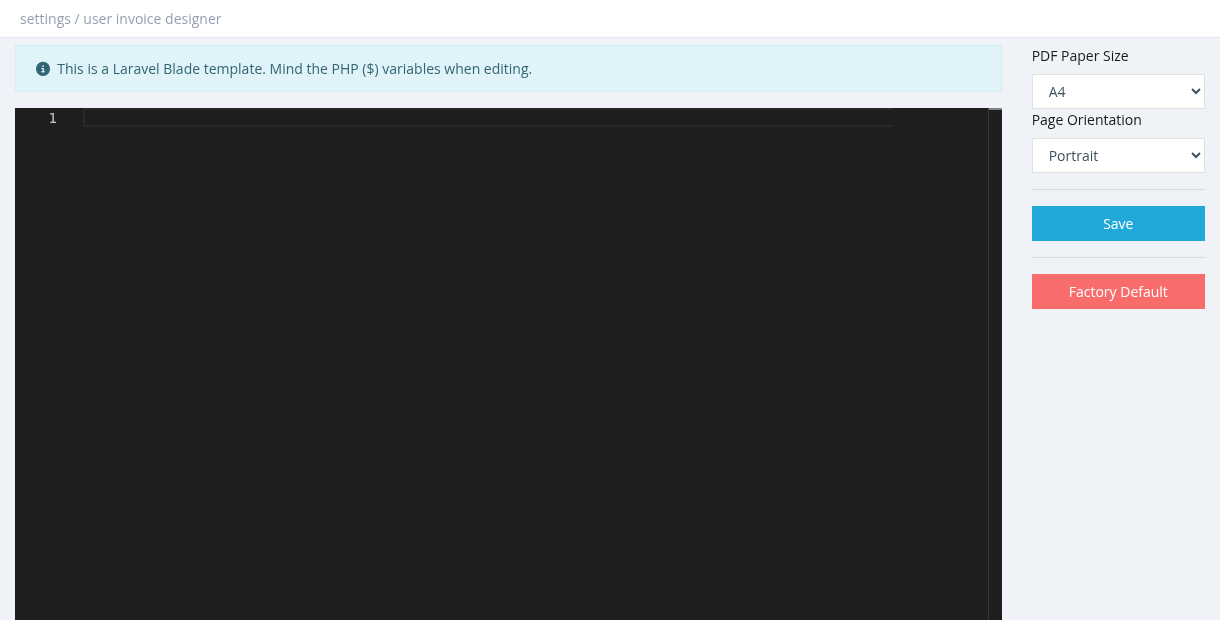
The Invoice Designer changes how invoice PDFs look: your logo, company details, layout and paper size. Open Billing → User Invoices → Actions → Invoice Designer.
Settings
| Field | Description |
|---|---|
| PDF Paper Size | A4, A5, or 80 mm (for receipt printers). |
| Page Orientation | Portrait or Landscape. |
| Template editor | The invoice template (HTML with Laravel Blade). Edit texts, colours and layout here. |
Click Save to apply. Factory Default restores the original template.
Customise before using invoices
- Logo: replace the image address in the
<img src="...">tag with your logo URL. - Currency: check the currency text near the total.
- Add your company name, address and tax number as text.
Values you can use in the template
| Variable | Content |
|---|---|
$issuer['site_name'], ['name'], ['address_line1'], ['address_line2'], ['phone'], ['email'] | Your site title and the details of the manager who created the invoice. |
$receiver['name'], ['username'], ['address_line1'], ['address_line2'], ['phone'], ['email'], ['profile_name'], ['expiration'], ['notes'] | The subscriber's details. |
$invoice['number'], ['issue_date'], ['due_date'], ['value'], ['vat'], ['discount'], ['total'], ['currency'], ['status'], ['comment'] | Invoice details. Status is PAID or UNPAID. |
$items (each with name, qty, unit_price, price) | The invoice lines. |
A mistake in the template (for example a missing }} or a wrong variable) stops all invoice PDFs from being created. If that happens, fix the template or click Factory Default. Keep a copy of your template before big changes.
The PDF supports Arabic and other languages. The server needs internet access when creating PDFs.
Required permission: Managers - System Administrator
Postpaid Billing and Settings
For subscribers on Postpaid profiles, SAS Radius creates an unpaid invoice shortly before each subscription period ends, so the subscriber can pay for the next period.
- The invoice appears in User Invoices as type purchase/postpaid, unpaid, due on the user's expiration date.
- The subscriber pays it in the user portal, or a system administrator marks it paid with Pay Invoice.
To turn automatic invoices on and set the timing, grace period and overdue handling, see Settings → Postpaid Billing.
Postpaid profiles are explained in Profile Types (Profiles chapter).