# Groups
User groups: creating groups and sharing users between managers of the same group.
# User Groups
**Groups** organise users and managers into teams, for example by branch, area or sales team. The most important use: managers of the same group can work with **all users of the group**, not only their own.
Open *Groups* in the menu.
[](https://help.snono-systems.com/uploads/images/gallery/2026-11/groups-list.png)
## Groups list
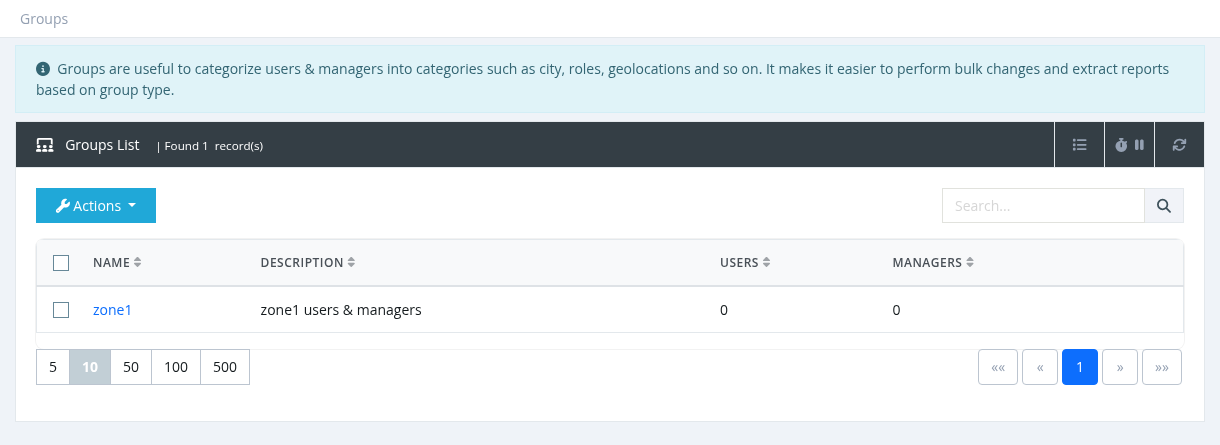
Columns: **Name** (click to edit), **Description**, **Users** (number of users in the group) and **Managers** (number of managers in the group). Search by name or description.
## Creating or editing a group
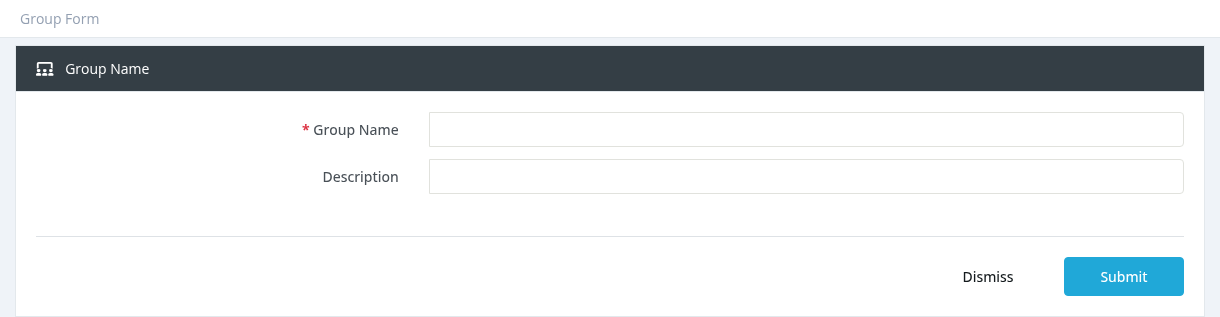
Click **Actions → New** (or click a group name), enter the **Group Name** (unique) and an optional **Description**, and click **Submit**.
[](https://help.snono-systems.com/uploads/images/gallery/2026-11/group-form.png)
## Deleting a group
Select one or more groups and click **Actions → Delete**, then confirm. Move users and managers to another group first if the group is still in use.
*Required permission: Groups - Index (Groups - Create / Update / Delete to change groups)*
# Using Groups
## Putting users and managers in a group
| For | How |
|---|
| A user | The **Group** field in the user form (needs *Groups - Assign*). Without this permission, new users get their parent manager's group. |
| A manager | *Managers → Actions → Assign to Group*, optionally also for all sub-managers and their users. New managers created by someone without *Groups - Assign* get the parent's group. |
| Many users | *Tools → Bulk Changes → Set Group*. |
## What groups do
- Managers with the permission **Users - List All Group Users** see and manage **all users of their group**, including users owned by other managers of the same group. Useful for branch staff or support teams.
- Group membership also affects the Activations report, the User Auth Log and dashboard counters for these managers.
- The Users List and the Managers List can be filtered by group, and the **Group** column can be shown.
## Example: a branch team
1. Create the group *Erbil Branch*.
2. Assign the branch managers to it with *Assign to Group*, ticking *Propagate Users*.
3. Give the branch permission group *Users - List All Group Users*.
4. Every manager of the branch can now serve every customer of the branch.
Groups are different from **permission groups** (what a manager may do, in *Settings → permission groups*) and from **sites** (separate brands and domains).