Profile Daily Policies
Daily policies change a profile's behaviour at certain times of the day or days of the week, for example double speed at night, free (uncounted) traffic after midnight, or a lower speed after a certain amount of traffic. Changes are applied to online users automatically, without disconnecting them.
Where
Edit the profile and click Daily Policies at the top of the form. The list shows From, To, Threshold (MB), Days, Target and Target Details. Click + to add a policy.
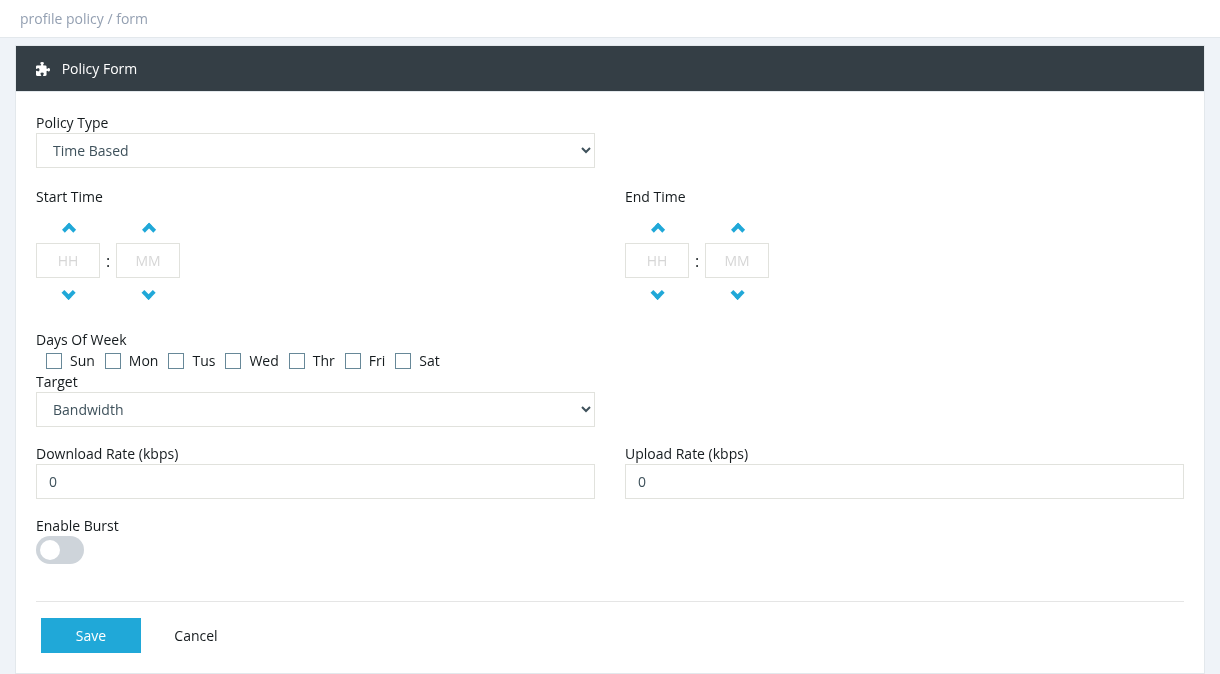
Policy fields
| Field | Description |
|---|---|
| Policy Type | Time Based: active between Start Time and End Time. Traffic Based: active after the user has used the Traffic Threshold (MB). |
| Start Time / End Time | The time window (Time Based). |
| Traffic Threshold (MB) | Traffic after which the policy applies (Traffic Based). |
| Days Of Week | The days the policy is active. Tick at least one day. |
| Target | What the policy does. See below. |
Targets
| Target | Effect |
|---|---|
| Bandwidth | Sets a different Download / Upload Rate (kbps), optionally with burst. |
| Accounting | Counts only a percentage of traffic: Download / Upload Ratio (%). 0% = free traffic (not counted against the quota), 50% = half counted. Time Based only. |
| Terminate | Disconnects the user. |
| Mikrotik Address-List | Adds the user to a MikroTik address list. |
| Cisco Policy | Applies Cisco qos-policy-in / qos-policy-out. |
Example: free night traffic
Time Based, 00:00 – 08:00, every day, Target Accounting, Download Ratio 0, Upload Ratio 0.
Requirements
- The Policy Manager service must be running (Tools → System Services). Restart it after adding or deleting policies.
- Speed changes are sent to the router as CoA requests, so CoA must work on the NAS (see Disconnect and CoA in the NAS chapter).
- Avoid overlapping time windows on the same profile.
Required permission: Profiles - Policy Manager