
Backup and Restore
Tools → Backup lists the database backups on the server and lets you create, download, upload, restore and delete them.
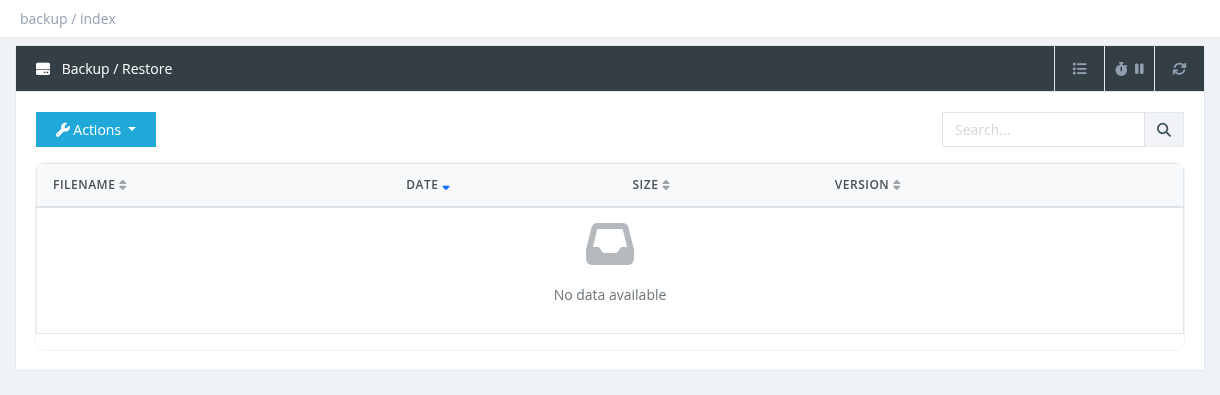
The list shows FileName (click to download), Date, Size and Version (the SAS Radius version the backup was made with). Search by file name.
Buttons
| Button | What it does | Permission |
|---|---|---|
| Create Backup | Starts a backup in the background. Reload the page after a few minutes to see the new file. | Backup - Create |
| Download | Downloads the selected backup file (.gz). Keep copies outside the server. |
Backup - Download |
| Upload | Uploads a backup file (.gz) from your computer, for example to restore it on a new server. |
Backup - Restore |
| Restore | Restores the selected backup. See below. | Backup - Restore |
| Delete | Deletes the selected backup file. | Backup - Delete |
| Settings | Opens the backup settings: backup disk, daily backups, session records, Google Drive and auto-delete. See the Backup Settings page in the Settings chapter. | Settings - System Settings |
Opening the Backup page needs Backup - Download.
What is in a backup
A compressed copy of the SAS Radius database: users, managers, profiles, NAS, cards, invoices, journals, settings and more. Session history is included only if Include Session Records is enabled in the backup settings (this makes files much larger).
Restoring a backup
- Select the backup and click Restore, then confirm.
- A Restoring Database window shows the progress. Don't close the window or reload the page.
- When finished, all managers are logged out. Log in again.
A restore replaces the whole database with the backup, including settings. Everything changed after the backup was made (activations, payments, new users) is lost. Create a fresh backup and download it before restoring.
- If the server time looks wrong after a restore, reboot the server.
- Only one backup or restore can run at a time.
Good practice
- Enable Daily Backups on a separate backup disk, and Upload To Google Drive for an off-site copy.
- Download a backup before system updates, bulk changes and maintenance actions.
- Use Auto Delete Old Backups so the backup disk doesn't fill up.