
Designing and Printing Cards
Design how your cards look once, then print any series as a PDF.
Cards Designer
Open Cards System → Actions → Cards Designer.
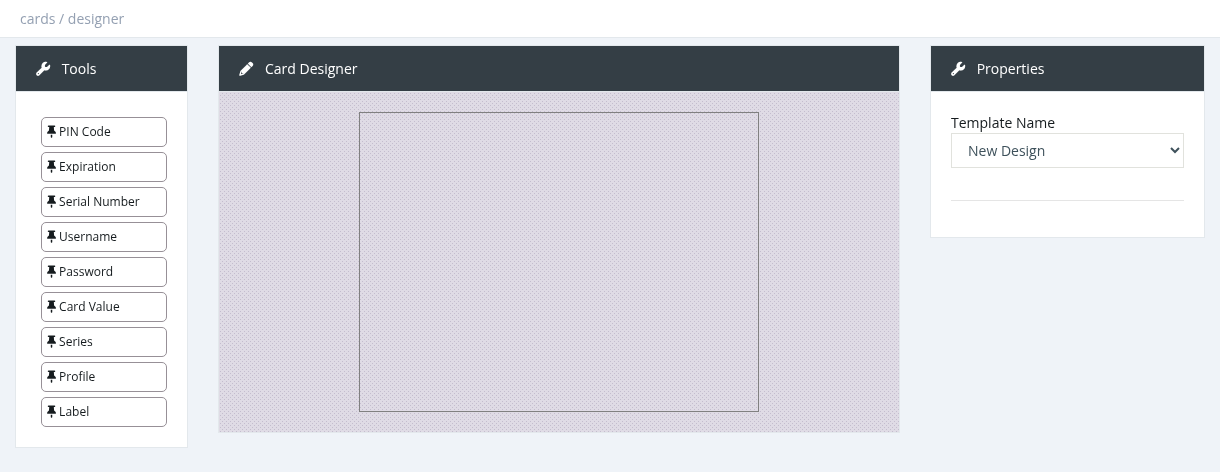
- Set the card Width and Height (pixels, default 400 × 300).
- Choose a Background Image (your card artwork, with logo and instructions).
- Drag the fields you need onto the card: PIN Code, Expiration, Serial Number, Username, Password, Card Value, Series, Profile, or a Label (fixed text).
- Click an item to set its Font Size, Font Family, Font Color and position (X, Y). For a Label, the Sample Text is the printed text.
- Turn on Public Design to let all managers use the design.
- Click Save and enter a Template Name.
To change a design, select it in Template Name, edit and save. Only the owner of a design (or a system administrator) can change or delete it.
Required permission: Cards - Designer
Printing a series
- In the series list, select the series and click Actions → Download (PDF).
- Choose the Design Template, the Page Size (A4 or Letter), Show Cutting Marks and the Size Ratio (to make cards smaller or bigger).
- Check the preview and click Download. The PDF is saved as
<series>.pdf.
The PDF is created in your browser. For large series it can take a moment. Use a design with a background image.
Required permission: Cards - Download (and Cards - Designer to see the designs)