
Forms
Settings → forms lets you change the built-in forms of the panel (for example the user form or the NAS form) and add your own custom fields, without software changes.
This page is available to system administrators on licenses of 10,000 users or more.
Editing a form
- Select the form in the list on the left (for example
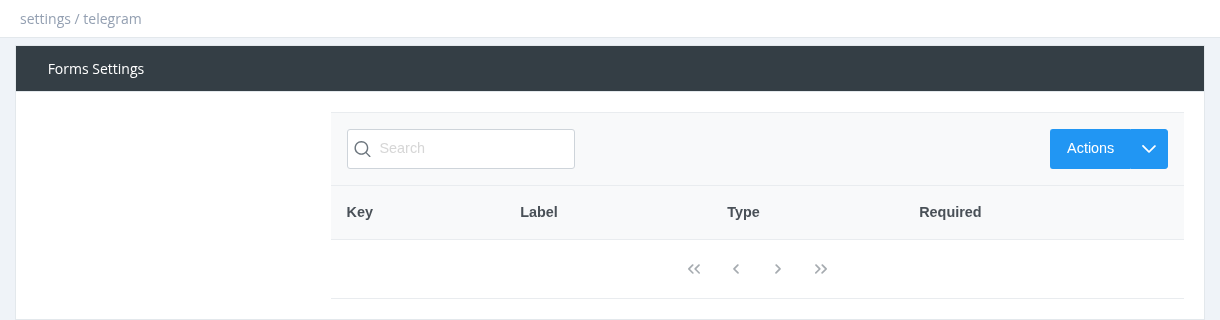
user_form). Its fields are shown with Key, Label, Type and Required. - Select a field and click Actions → Edit, or click Actions → New to add a field.
- Set the field properties in the Field Editor and save.
- Reload the page (or log in again) to see the changes in the form.
Field Editor
| Property | Description |
|---|---|
| Data Key | The field's internal name. |
| Label, Place Holder, Value | Text shown, hint inside the field, and default value. |
| Type | Text, Dropdown, Dropdown with filter, Switch, Label, Password, multi-select, Date, Time, File, Text Area, Separator. |
| Size | Width in columns (12 = full width, 6 = half). |
| Options | For dropdowns, as JSON, for example [{"value":"a","label":"Option A"}]. |
| Pattern (Regex) | Allowed input format. |
| Required, Hidden, Hide Label, Bold Label, Layout | Display options. |
| ACL | A permission key; managers without it don't see the field. |
- Changing a built-in field saves your version; deleting it restores the original. Built-in fields can't be removed, but can be hidden.
- Custom fields appear at the end of the form.
Custom fields in the user and manager forms are saved in the database. Before adding one, ask Snono support to add the matching database column; otherwise saving users or managers fails.
Required permission: Managers - System Administrator