
My Profile, Password and 2FA
Every manager can manage their own account from the account menu (top right) → Profile.
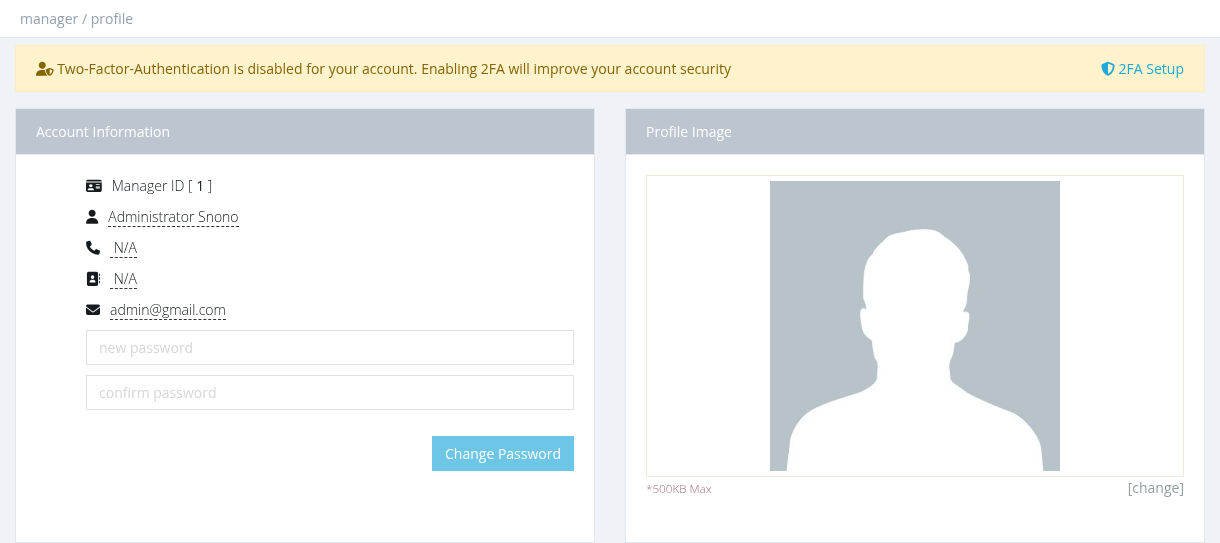
Account Information
Shows your manager ID. You can edit your full name, phone, address and email (needs Managers - Update Self Information).
Change Password
Enter the new password twice and click Change Password (needs Managers - Change Self Password). The password strength rule from Settings → General Settings applies.
Profile Image
Click change to upload a picture (up to 500 KB).
Two-Factor Authentication (2FA)
2FA protects your account with a 6-digit code from an authenticator app (Google Authenticator, Microsoft Authenticator or any TOTP app) in addition to the password.
Enable 2FA
- On the Profile page click 2FA Setup, then Enable 2FA.
- Scan the QR code with your authenticator app.
- Enter the 6-digit code from the app and click Verify Code.
From now on, after entering your username and password, the login page asks for the code from the app.
Disable 2FA
Open 2FA Setup and click Disable 2FA?, then confirm.
Lost your phone? A system administrator can turn off Requires Two Factor Auth in your manager form so you can log in with your password only, then set up 2FA again.
Force Password Change
If an administrator turned on Force Password Change for your account (or for all managers from Tools → Maintenance), the panel asks you to choose a new password when you open it: The system administrator is asking you to change your current password. Enter the new password twice and click Change Password.