
System Update
Tools → System Update installs new versions of SAS Radius. When an update is available, system administrators also see a banner at the top of every page: New Software Update Available.
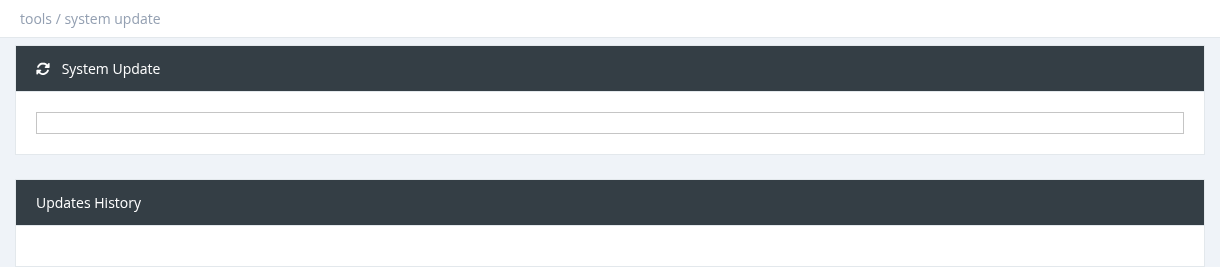
- New Update Available (version) with the list of changes, and an Install Update button, when an update exists.
- Your system is up to date and a Check Now button when not.
- Updates History lists previous versions and their changes.
Installing an update
- Create and download a backup first (see Backup and Restore).
- Choose a quiet time; services may restart during the update.
- Click Install Update. A progress bar shows downloading and installing. Don't close the page.
- When the update is installed, the page reloads by itself.
- Check the version again; if more updates are listed, install them one by one.
Custom changes made directly on the server (edited panel files or custom widgets) can be overwritten by an update.
Required permission: Managers - System Administrator