Tables and Controls
All lists in SAS Radius (users, managers, NAS, cards, reports…) work the same way. This page uses the Users List as an example.
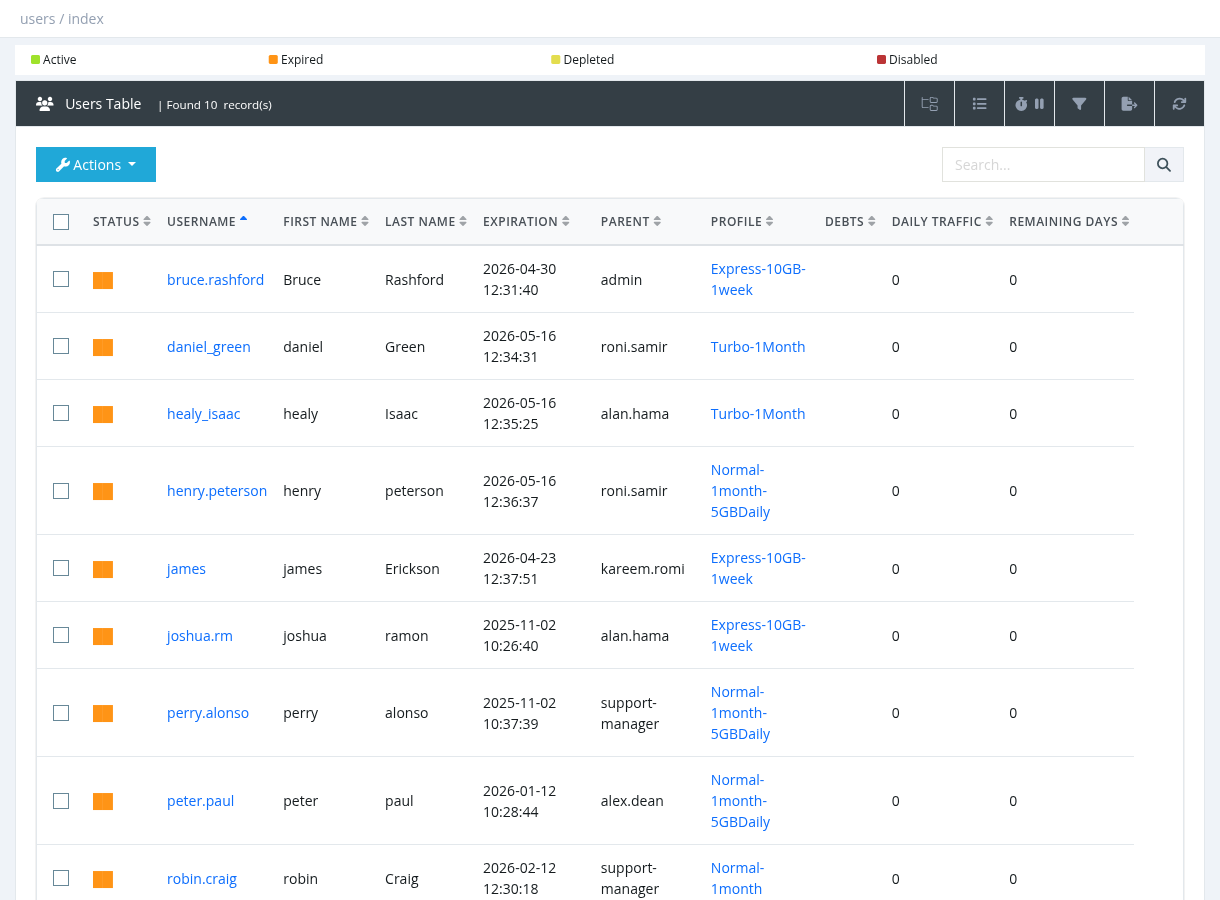
Title bar buttons
| Button | What it does |
|---|---|
| Managers Tree | Shows the managers tree; click a manager to see only their records. (Only on some tables.) |
| Show/hide columns | Choose which columns are displayed. Your choice is saved in your browser. |
| Refresh timer | Reload the table automatically every 5, 10 or 30 seconds, or not at all. |
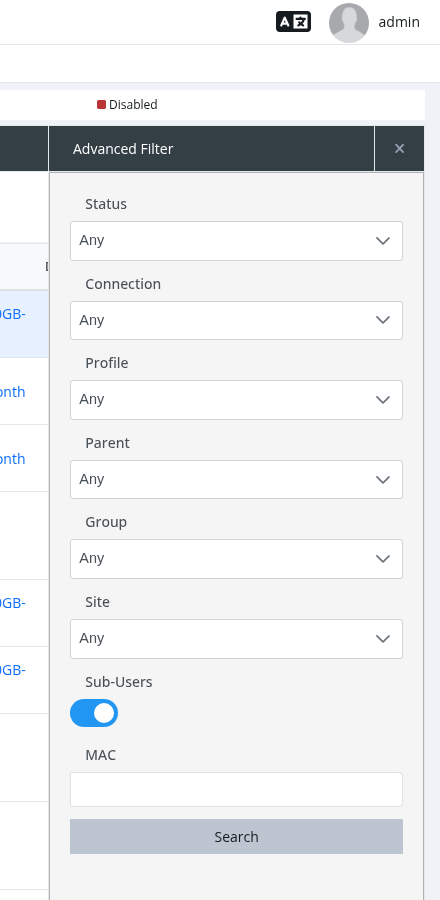
| Show/hide filter | Opens the Advanced Filter panel (only on tables that have one). |
| Export | Exports the filtered rows to Excel. Large exports are prepared in Reports → Data Export Jobs. |
| Reload | Reloads the data. |
The title bar also shows how many records were found.
Search and filter
- Type in the Search box and press Enter (or click the magnifier).
- Open the Advanced Filter, choose the options and click Search.
- The current page, sorting, search and filter are kept in the browser address. You can bookmark a filtered list or send the link to a colleague.
Sorting and pages
- Click a column header to sort; click again to reverse.
- Below the table, choose how many rows to show (5, 10, 50, 100 or 500) and move between pages.
Selecting rows and actions
- Click a row to select it (highlighted). Tick the checkboxes to select several rows; the top checkbox selects the whole page.
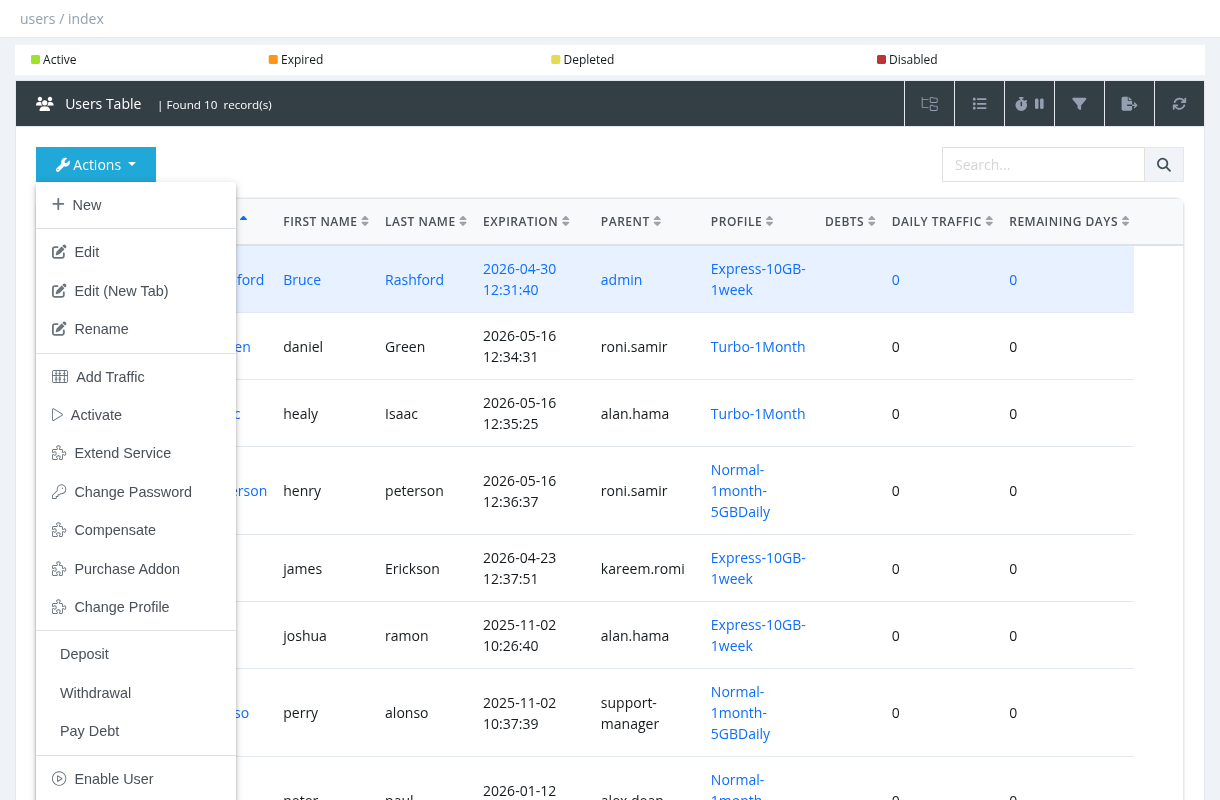
- Open the Actions button for everything you can do. Actions you don't have permission for are hidden.
- Right-click a row to open the same actions as a menu.
- Actions for one record use the highlighted row; actions for several records use the ticked rows.
- Click a blue name (for example a username) to open its details. Middle-click opens it in a new tab.