
Welcome Screen

TwoThe messagesWelcome canScreen beis an Announcement window shown to managers (not subscribers) inwhen they open the admin panel. Both are turned on in Settings → notifications, where the Screen Editor and EULA Editor buttons open the editors.

Welcome Screen
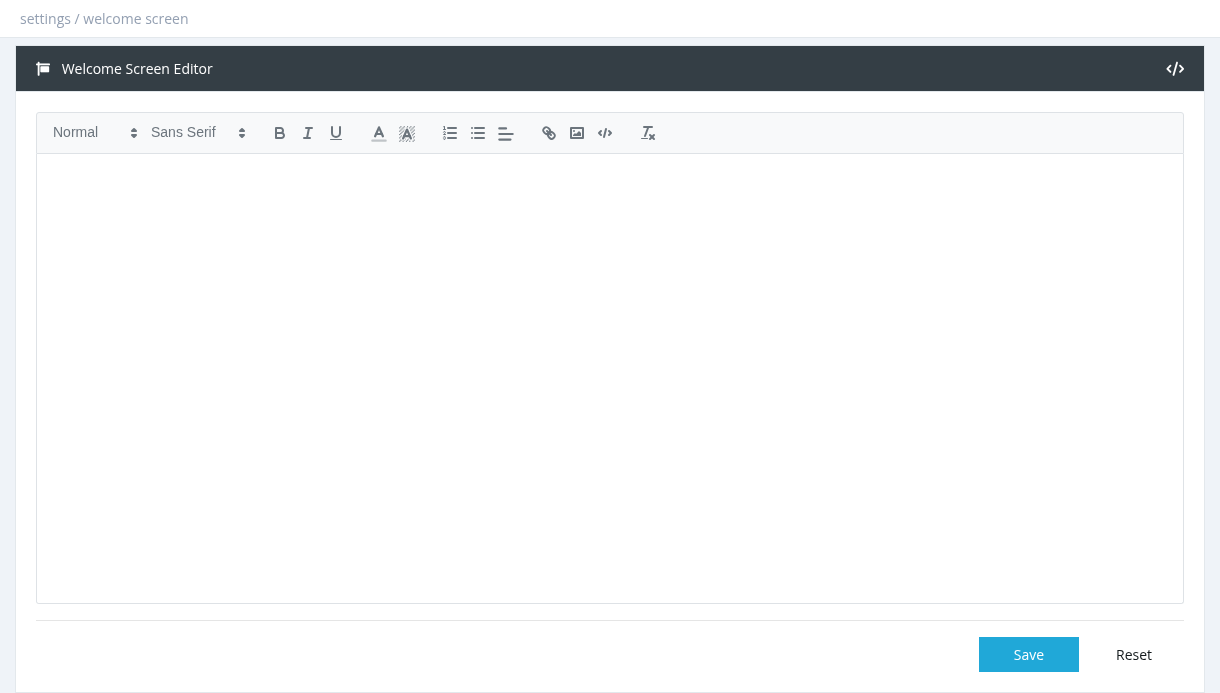
settings welcome screen

An Announcement window shown when managers open thepanel dashboard, for example news, price changeschanges, holiday opening hours or contact details.

settings welcome screen

Setting it up

  1. TurnOpen Settings → notifications and turn on Show Welcome Screen On Login in Settings → notifications.
  2. Click Screen Editor,.
writeWrite the message in the editor (usebold, colours, links, images). Use the </> button to edit HTML)the andHTML clickdirectly. Click Save. Reset reloads the last saved text.

    Managers can close the window. It appears again each time the dashboard is opened.

    License Agreement (EULA)

    Requires every manager to accept your terms before using the panel.

      Turn on Require License Agreement (EULA) Acceptance in Settings → notifications. ClickTo stop showing it, turn off EULAShow EditorWelcome Screen On Login, write the agreement and save.
        After login, managers see the License Agreement page. They must tick I have read and agree to the terms of this agreement and click I Accept; Decline & Logout logs them out. Until they accept, managers can view pages but can't save anything. Every time you save the EULA, all managers (including you) must accept it again. Acceptances are recorded in the System Log..

        Required permission: Settings - System Settings