
Users List
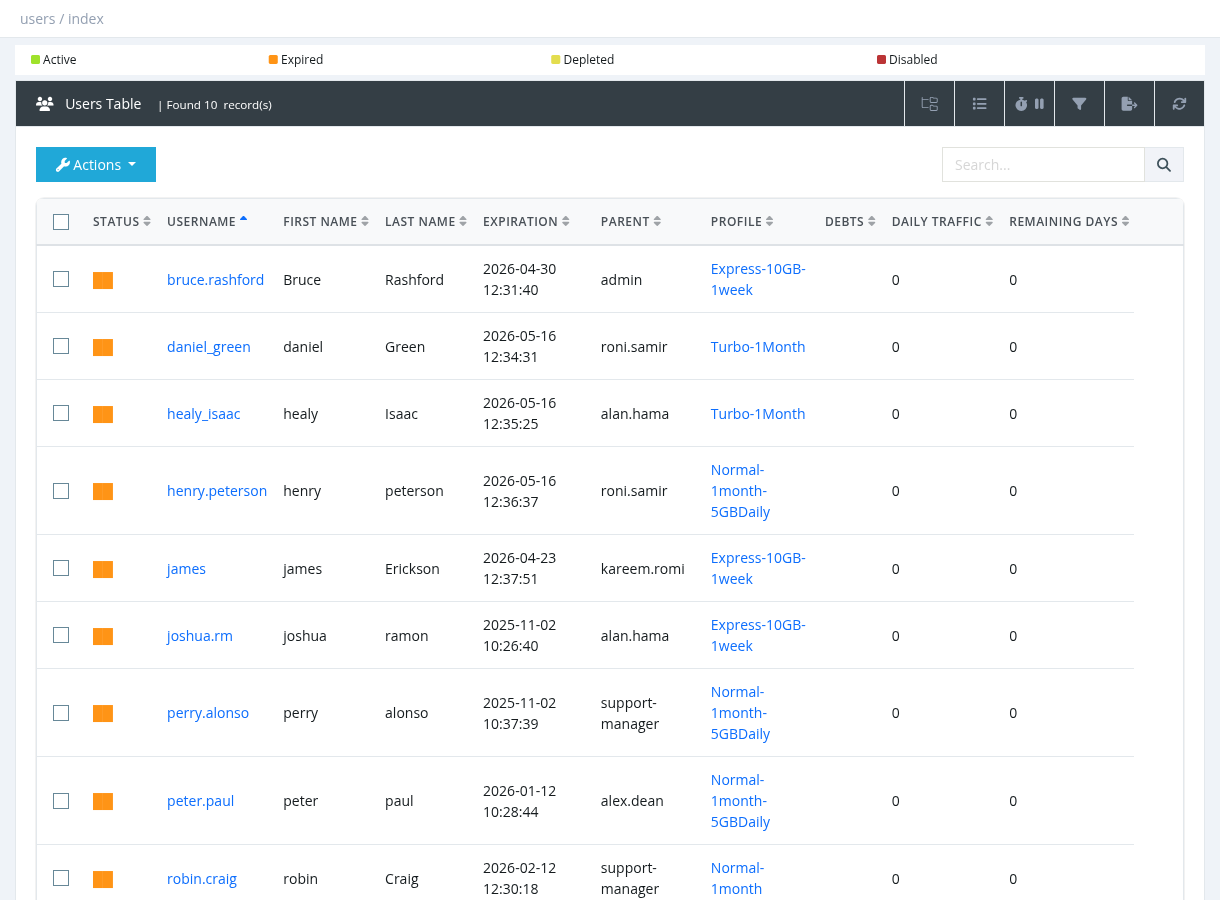
The Users List (Users → Users List) shows all subscribers you are allowed to manage. From here you can search, filter and export users, and run every user operation from the Actions menu.
Which users you see
- By default a manager sees the users that belong to them and all of their sub-managers.
- System administrators and managers with Users - List All Users see every user.
- Managers with Users - List All Group Users see all users of their group.
- A manager assigned to a Site sees only the users of that site.
- Managers with Users - POS see an empty list until they search: they must type at least 3 characters, and only exact matches (username, phone, first/last name, contract ID or national ID) are shown.
Status colours
The first column shows the user's status as a coloured block (Active, Expired, Depleted, Disabled). A blue block means the user is online right now. See User Status Colors for details.
Table columns
Use the show/hide columns button to choose which columns are displayed. Your choice is saved in your browser.
| Column | Description | Shown by default |
|---|---|---|
| Status | Status colour and online indicator. | Yes |
| Username | Login name. Click it to open the User Details Page. Online users are shown in bold. | Yes |
| First Name / Last Name | Subscriber's name. | Yes |
| Expiration | Date and time the subscription ends. Managers with Users - Edit Advanced Fields (dangerous!) can click it to change the date directly. | Yes |
| Parent | The manager who owns the user. | Yes |
| Profile | The user's service profile (package). Click it to open the profile (needs Profiles - Update). | Yes |
| Debts | Money the user still owes (see Deposit, Withdrawal and Pay Debt). | Yes |
| Daily Traffic | Download + upload used today. | Yes |
| Remaining Days | Days left until expiration (0 when expired). | Yes |
| Balance | The user's own wallet balance. | No |
| Group, Site | The user's group and site. | No |
| Used Traffic | Progress bar of the traffic quota. | No |
| Available Traffic | Remaining traffic quota. | No |
| Debt Days | Service days owed from debitable extensions. They are deducted from the next activation. | No |
| PIN errors | Number of wrong PIN / card attempts. | No |
| Last Online, Created On | Last time the user was online, and the creation date. | No |
| City, Address, Phone, Company, Notes, Static IP, Contract ID, National ID, IPv6 Prefix, Simultaneous Sessions | Values from the user form. | No |
Toolbar buttons
| Button | What it does |
|---|---|
| Managers Tree | Opens the manager tree. Select a manager to show only their users (and their sub-managers' users). |
| Show/hide columns | Choose the visible columns. |
| Refresh timer | Reload the table automatically every 5, 10 or 30 seconds. |
| Show/hide filter | Opens the Advanced Filter panel. |
| Export | Exports all users that match the current search and filter to Excel. The file is prepared in the background and can be downloaded from Reports → Data Export Jobs. Needs Users - Export to Excel. |
| Reload | Reloads the table. |
Search
Type in the Search box and press Enter. The search matches part of the username, first name, last name, phone, address, city, notes, static IP or contract ID, and an exact national ID.
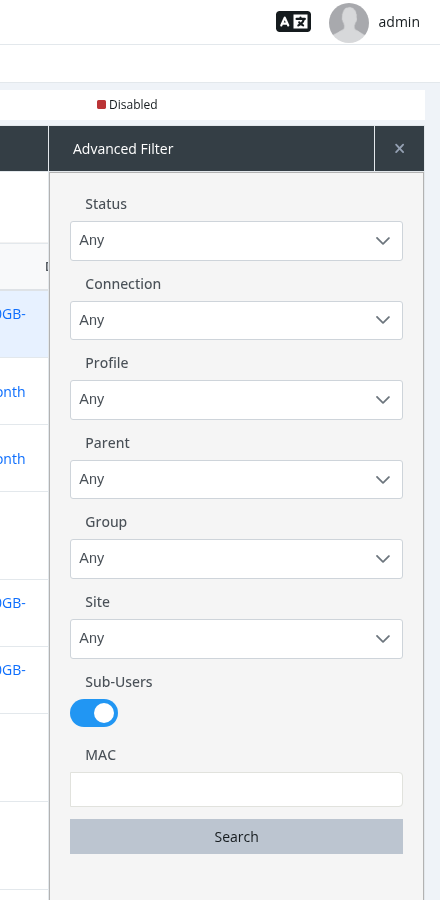
Advanced Filter
| Filter | Options |
|---|---|
| Status | Active (expiration in the future), Expired (expiration in the past), Disabled, Expiring Soon (expires within the next two days), Expiring Today. |
| Connection | Online or Offline. |
| Profile | Users on one profile. |
| Parent | Users of one manager. |
| Group / Site | Users of one group or site (shown only if you have the related permission). |
| Sub-Users | ON (default): include the users of the selected manager's sub-managers. OFF: only the manager's direct users. |
| MAC | Users with a matching MAC address (at least 2 characters). |
The page, sorting, search and filter are kept in the browser address. You can bookmark a filtered list or share the link with another manager.
Actions
Select a user (click the row) and open the Actions menu, or right-click the row. Some actions also work on several ticked users. See Users Actions for the full list.