
Online Users
Online Users (Users → Online Users) lists the subscribers that are connected right now, with their IP, MAC, traffic and uptime. You see only the users you are allowed to manage.
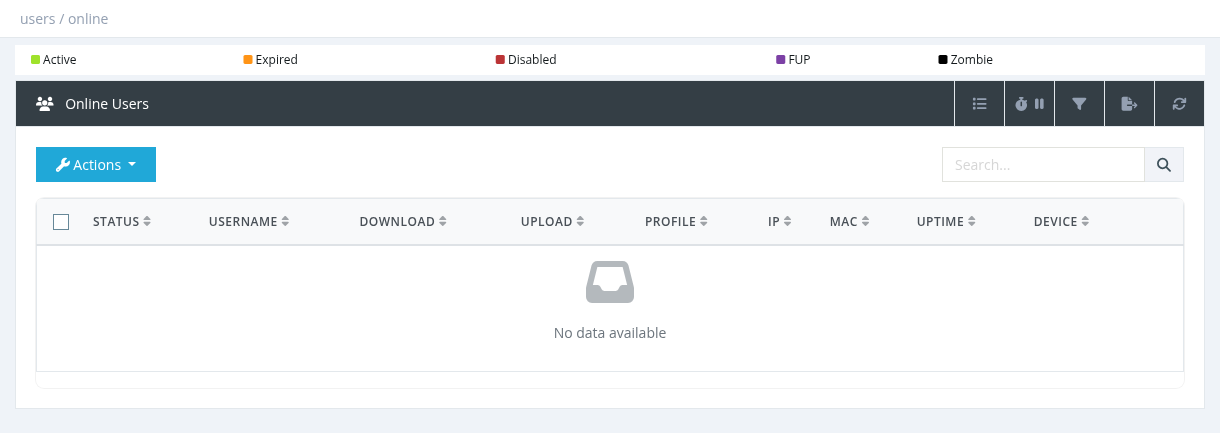
Columns
| Column | Description | Shown by default |
|---|---|---|
| Status | Active, Expired or FUP (see User Status Colors). | Yes |
| Username | Click to open the user's details page. | Yes |
| Download / Upload | Traffic of the current session. | Yes |
| Profile | The user's profile. | Yes |
| IP | The IP address given to the user. Click to open http://<IP> (for example the subscriber's router page). |
Yes |
| MAC | The MAC address of the subscriber's device. | Yes |
| Uptime | Duration of the current session. | Yes |
| Device | Device vendor, detected from the MAC address. | Yes |
| NAS | The router (NAS) the user is connected to. | No |
| Daily Quota | Percentage of the daily traffic limit used today. | No |
| First Name, Last Name, Expiration, Parent, Service, Contract ID | Additional user and session details. | No |
Search and filter
The search box matches username, first name, last name, MAC or IP. The Advanced Filter can filter by Status, Connection (FUP / Non-FUP), Parent, Sub-Users, Profile, Active Profile and NAS.
Actions
| Action | What it does | Permission |
|---|---|---|
| Live Traffic | Shows a live chart of the user's download and upload speed. | Users - Live Traffic Monitor |
| Overview / Edit (New Tab) | Opens the user's details page. | Users - Update |
| Disconnect | Disconnects the selected user(s). Works on several ticked users. | Users - Disconnect |
| Lock MAC | Adds the current MAC to the user's Allowed MACs and turns MAC Lock on. From the next login, the user can connect only from this device. | Users - MAC Lock User |
| Ping | Pings the user's IP from the router and shows sent/received packets and response times. | Users - Ping |
Disconnect
SAS Radius sends a RADIUS Disconnect-Request to the NAS. It normally takes a few seconds. If users are not disconnected, check on the router that:
- RADIUS incoming (CoA / Disconnect, UDP port 1700) is enabled;
- the secret matches the NAS secret in SAS Radius;
- there is no NAT or firewall between SAS Radius and the router blocking port 1700.
Ping and Live Traffic requirements
- Ping works with MikroTik NAS only. The NAS must have its SSH username, password and port filled in. If it fails you see Mikrotik API error, unable to ping.
- Live Traffic needs SNMP enabled on the router with the same SNMP community as in the NAS settings, and the sas_userlivetraffic service running (Tools → System Services). Select the user's row before opening it.
Required permission: Users - Index