
Compensations
Compensations give subscribers free days, traffic or uptime, for example after a network outage. It is a two-step process: a manager creates a compensation request, and a manager with approval permission approves it. Nothing is applied to the user until approval. Compensations never involve money.
1. Create a request
- In the Users List, select one user or tick several users.
- Click Actions → Compensate.
- Choose the Compensation Target: Days, Traffic (MB) or Uptime (hours), enter the amount and a comment.
- Click Submit. One request per user is created with status Not Approved.
2. Approve
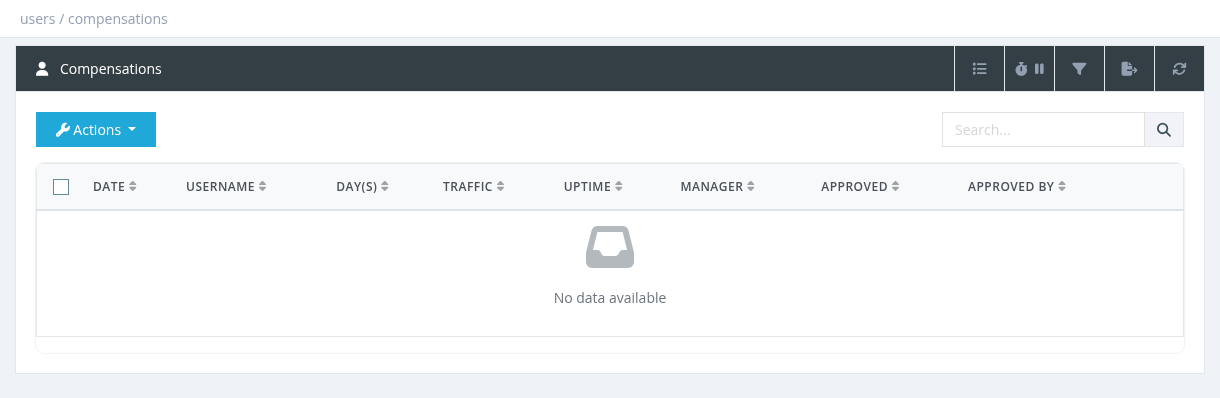
- Open Users → Compensations. By default the list shows Not Approved requests.
- Tick the requests and click Actions → Approve.
- Review each request, add optional Notes and click Submit.
What approval does
- Days: added to the user's expiration. If the user is already expired, the days start from now.
- Traffic: added as total (download + upload) quota.
- Uptime: added as uptime quota.
Approve only requests with status Not Approved (keep the default filter). Approving an already approved request applies it again. Deleting an approved request does not take back the days or traffic.
Bulk import from a file
To compensate many users at once, use Actions → Upload:
- Click Upload File and choose an Excel or CSV file. The first 20 rows are shown.
- Above each column choose what it contains: username, days, traffic (MB), hours, comment or ignore. The username and days columns are required (use 0 days for traffic-only rows).
- Tick Ignore Header (first row) if the file has a header row, then click Start.
Example file:
username,days,traffic,hours,comment
user1,3,0,0,Outage 2026-11-01
user2,0,5120,0,Outage compensation 5 GB
All rows are imported as Not Approved requests and must then be approved. Usernames that don't exist are skipped.
Permissions
| Permission | Allows |
|---|---|
| Users - Compensate | See the list and create requests. Without approval permission, a manager sees only their own requests. |
| Users - Approve Compensations | Approve and delete requests. |
| Users - Upload Compensations File | Bulk import. |