Online Users
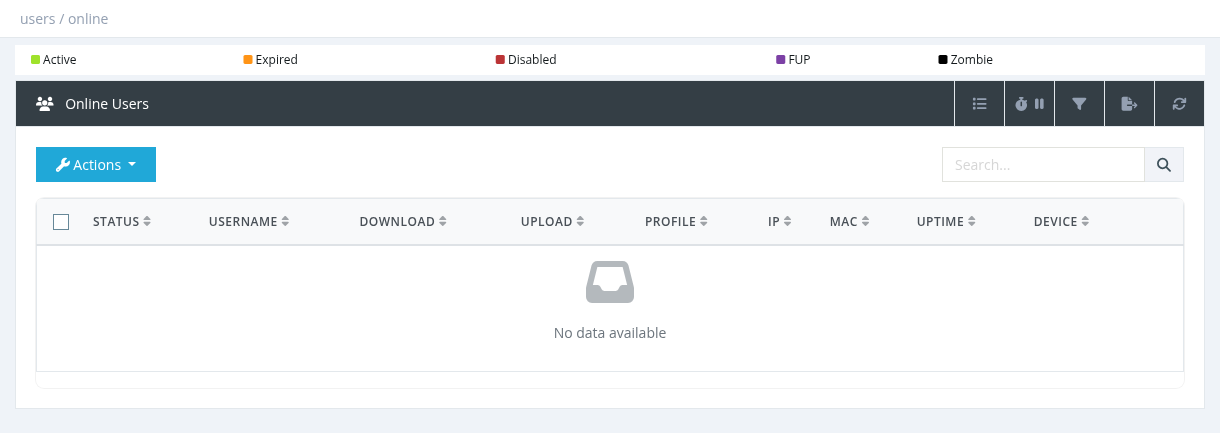
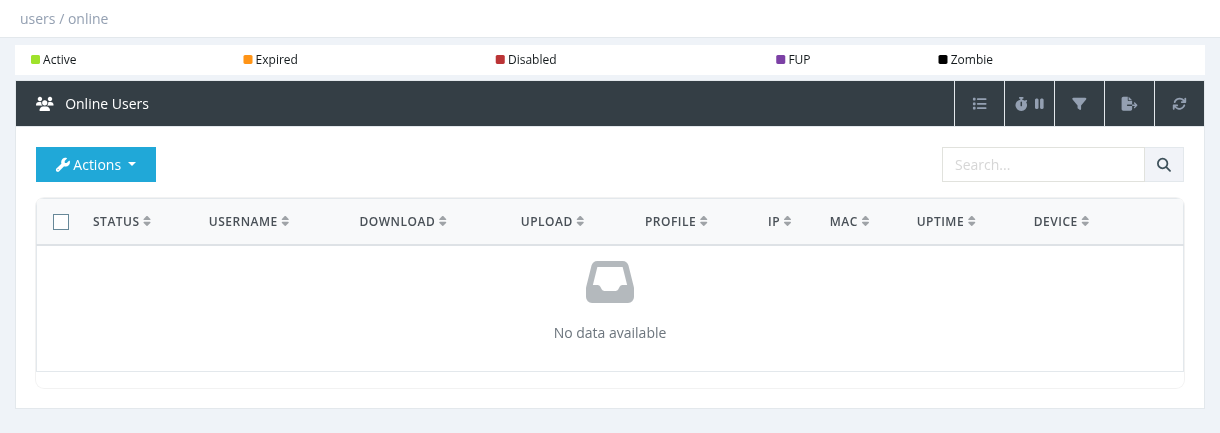
Online Users (Users → Online Users) lists the subscribers that are connected right now, with their IP, MAC, traffic and uptime. You see only the users you are allowed to manage.
Columns
Column
Description
Shown by default
Status
Active, Expired or FUP (see User Status Colors).
Yes
Username
Click to open the user's details page.
Yes
Download / Upload
Traffic of the current session.
Yes
Profile
The user's profile.
Yes
IP
The IP address given to the user. Click to open http://<IP> (for example the subscriber's router page).
Yes
MAC
The MAC address of the subscriber's device.
Yes
Uptime
Duration of the current session.
Yes
Device
Device vendor, detected from the MAC address.
Yes
NAS
The router (NAS) the user is connected to.
No
Daily Quota
Percentage of the daily traffic limit used today.
No
First Name, Last Name, Expiration, Parent, Service, Contract ID
Additional user and session details.
No
Search and filter
The search box matches username, first name, last name, MAC or IP. The Advanced Filter can filter by Status, Connection (FUP / Non-FUP), Parent, Sub-Users, Profile, Active Profile and NAS.
The Export button exports the online users to Excel (needs Users - Export to Excel).
Actions
Action
What it does
Permission
Live Traffic
Shows a live chart of the user's download and upload speed.
Users - Live Traffic Monitor
Overview / Edit (New Tab)
Opens the user's details page.
Users - Update
Disconnect
Disconnects the selected user(s). Works on several ticked users.
Users - Disconnect
Lock MAC
Adds the current MAC to the user's Allowed MACs and turns MAC Lock on. From the next login, the user can connect only from this device.
Users - MAC Lock User
Ping
Pings the user's IP from the router and shows sent/received packets and response times.
Users - Ping
Disconnect
SAS Radius sends a RADIUS Disconnect-Request to the NAS. It normally takes a few seconds. If users are not disconnected, check on the router that:
RADIUS incoming (CoA / Disconnect, UDP port 1700) is enabled;
the secret matches the NAS secret in SAS Radius;
there is no NAT or firewall between SAS Radius and the router blocking port 1700.
Ping and Live Traffic requirements
Ping works with MikroTik NAS only. The NAS must have its SSH username, password and port filled in. If it fails you see Mikrotik API error, unable to ping.
Live Traffic needs SNMP enabled on the router with the same SNMP community as in the NAS settings, and the sas_userlivetraffic service running (Tools → System Services). Select the user's row before opening it.
Required permission: Users - Index