
Users Actions
All user operations are in the Actions menu of the Users List. Select a user first (click the row), then open Actions or right-click the row. Actions you don't have permission for are hidden.
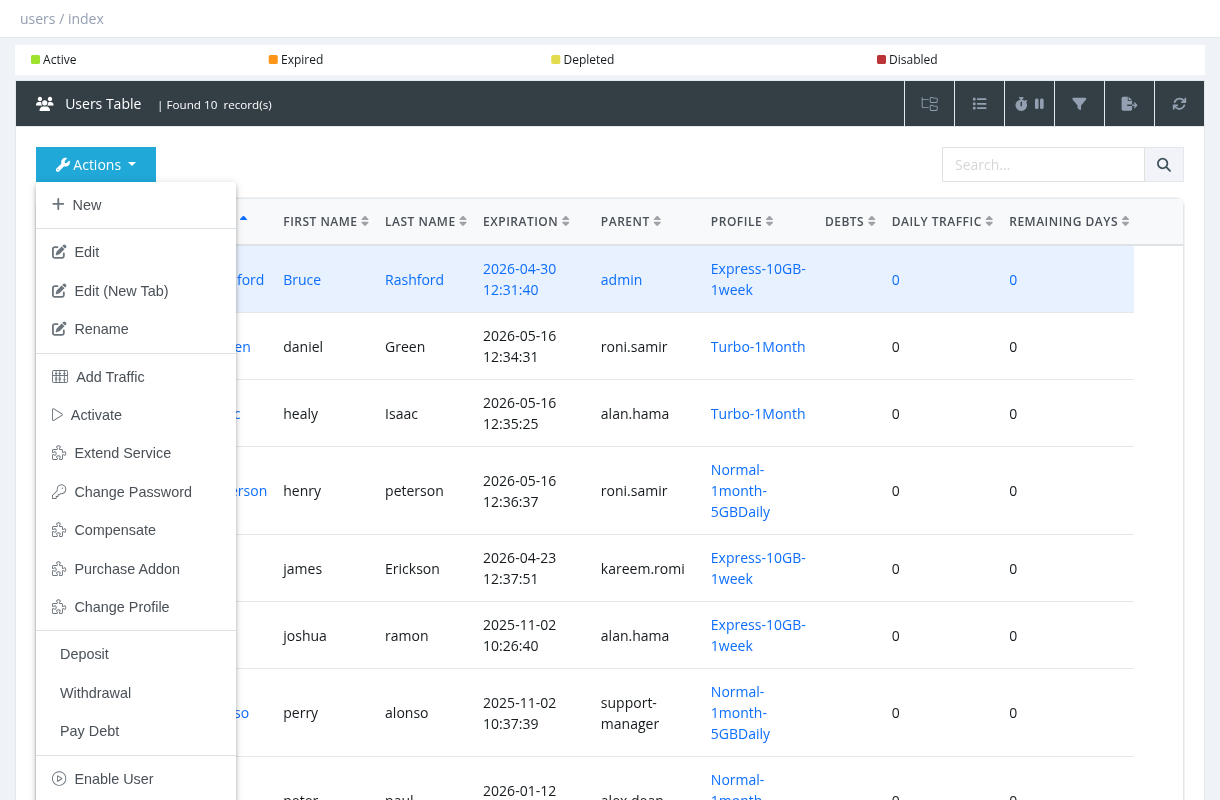
| Action | What it does | Several users |
|---|---|---|
| New | Create a new user. See Creating a User. | – |
| Edit / Edit (New Tab) | Open the user's details page. See User Details Page. | No |
| Rename | Change the username. See Rename User. | No |
| Add Traffic | Add or remove traffic quota. See Add Traffic. | No |
| Activate | Renew the subscription. Ticking several users opens bulk activation. See Activating a User. | Yes |
| Extend Service | Add an extension package (extra days or traffic). See Extend Service. | No |
| Change Password | Set a new PPPoE / RADIUS password. | No |
| Compensate | Request free days, traffic or uptime. See Compensations. | Yes |
| Purchase Addon | Buy an addon for the user. See Purchase Addon. | No |
| Change Profile | Move the user to another profile. See Changing Service Profile. | No |
| Deposit / Withdrawal / Pay Debt | Manage the user's balance and debts. See Deposit, Withdrawal and Pay Debt. | No |
| Enable User / Disable User | Allow or block the account. See Enable, Disable and Delete User. | Yes |
| Cancel Service | Cancel the last activation and refund it. See Cancel Service (Refund). | No |
| Delete | Delete the user. See Enable, Disable and Delete User. | Yes |
Actions for a single user always apply to the highlighted row (the last row you clicked), even if other rows are ticked.
Change Password
Enter the new password twice and click Submit. The new password is used at the user's next connection; the current session is not disconnected.
Required permission: Users - Update